
Amazon Echo Show vs Google Nest Hub: Which is Better for Seniors?

My sister called me last Thursday afternoon, and I could hear the loneliness in her voice.
“I’m sorry to bother you,” she said. “I know you’re busy. I just… I hadn’t talked to your niece in days because she works all hours and wanted to hear a voice.”
My heart broke. She lives three hours away in Delaware. I can’t just pop over for a visit. My brother and other sister live in Virginia. She really hasn’t any nearby friends to speak of. And phone calls, while nice, aren’t the same as seeing someone’s face.
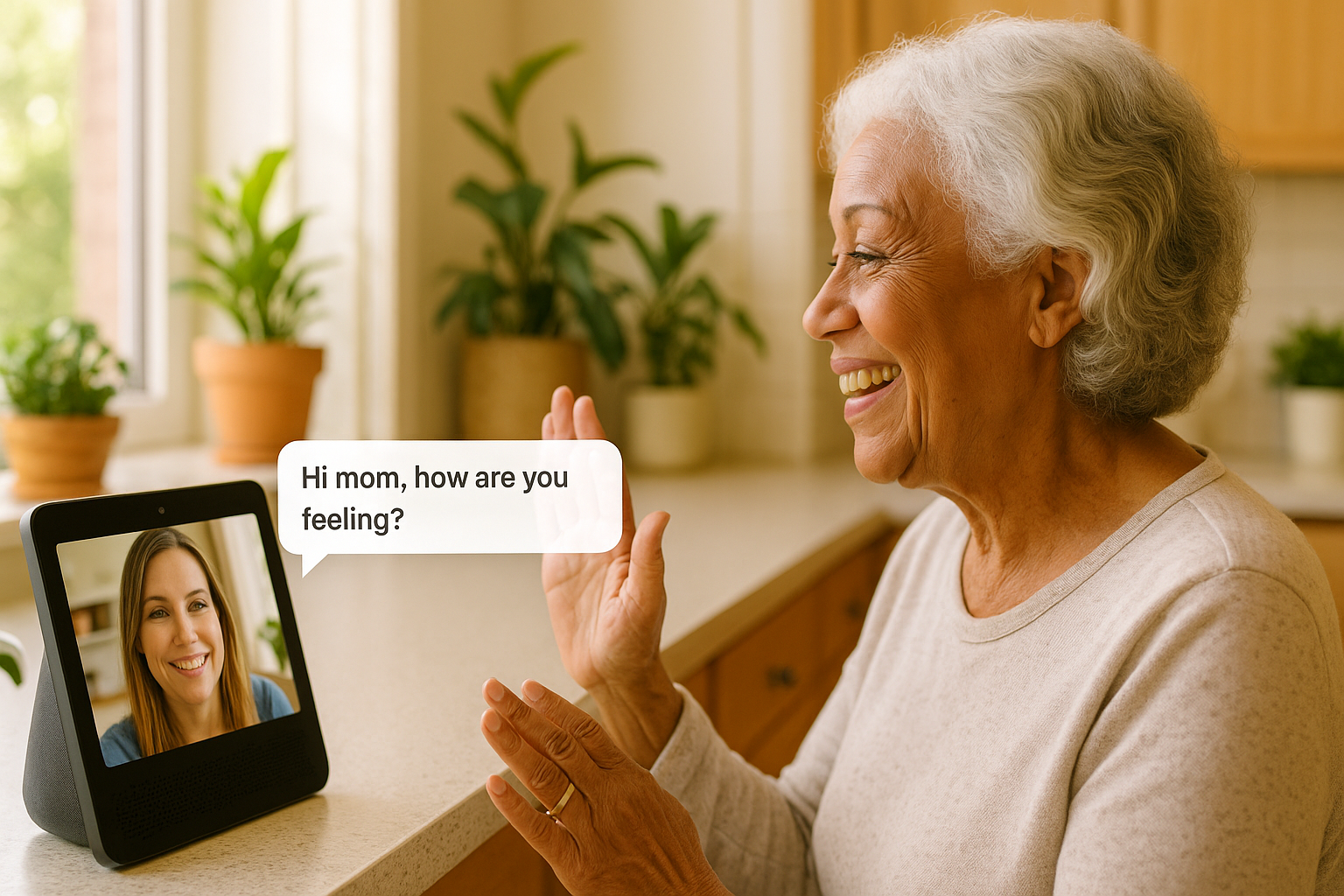
That’s when I started seriously researching these smart display devices—the ones with screens that let you make video calls just by talking to them. No buttons to press. No apps to open. No remembering passwords. Just “Alexa, call Carolyn” and suddenly we’re face-to-face.
But here’s the thing: there are two main options. Amazon makes the Echo Show. Google makes the Nest Hub. They both do similar things, but they’re different enough that choosing the wrong one could mean the device sits unused collecting dust.
I spent two weeks researching both. I watched dozens of YouTube reviews. I read alot of comments from real families. And I learned that for seniors and caregivers, the differences actually matter a lot.
Let me share what I figured out.
Why Smart Displays Are Game-Changers for Aging in Place
Before I compare the specific devices, let me explain why these things are such a big deal.
Think about everything your mom or dad (or you) might struggle with as you get older:
Making phone calls. Finding the phone. Remembering numbers. Dialing. Holding the phone. Hearing clearly. Regular phones can be hard.
Video calls. Most seniors have smartphones or tablets, but video calling on them is complicated. You have to find the app. Click the right button. Make sure the camera is facing the right way. Hope the person answers. It’s a lot of steps.
Remembering to take medication. You need reminders at specific times, but you might not hear your phone if it’s in another room.
Controlling the house. Getting up to turn off lights. Walking to the thermostat to change temperature. These small tasks get harder when mobility is limited.
Calling for help in an emergency. In a real emergency, trying to find your phone and dial 911 can take precious time.
Staying connected. Feeling isolated and alone, especially if you live alone and family is far away.
Smart displays with screens solve all of these problems.
You can make video calls by just talking: “Alexa, call my daughter.” No buttons. No apps. Just talk.
You can set medication reminders that you’ll actually see and hear because the screen lights up and makes noise right there in your kitchen or bedroom.
You can control lights and temperature with your voice: “Alexa, turn on the living room lights.” No more getting up.
You can call for help: “Alexa, call 911” works if you have it set up properly.
And most importantly for my sister: family can “drop in” and see her face without her having to do anything. I can just check in visually, see that she’s okay, and say hi—without her needing to answer anything.
These devices aren’t just gadgets. For many families, they’re lifelines.
Amazon Echo Show vs Google Nest Hub: The Basic Difference
Let me start with the simplest explanation:
Amazon Echo Show uses Alexa. You talk to Alexa. It works really well with Amazon services and a lot of smart home devices.
Google Nest Hub uses Google Assistant. You talk to Google. It works really well with Google services like Gmail, Google Calendar, and Google Photos.
Which one should you get? It depends on what you already use.
Get Echo Show if:
- You or your family have Amazon Prime
- You’re not really using Google services much
- You just want something simple that works
- Most of your family has iPhones (Echo Show works with both iPhone and Android equally well)
Get Google Nest Hub if:
- You use Gmail as your main email
- You have an Android phone
- Your family uses Google Calendar to share schedules
- You have lots of photos in Google Photos
Still confused? Here’s an even simpler rule: Most families should get the Echo Show. It’s more popular, has better reviews for seniors, and is usually a bit cheaper. Unless you’re really deep into Google services, Echo Show is the safer bet.
Now let me explain each option in detail.
Amazon Echo Show Options (Which Size Makes Sense?)
Amazon makes several different sizes of Echo Show. Let me explain each one so you understand what you’re looking at.
Echo Show 8 (3rd Generation) – My Top Pick for Most Families
What it costs: $179.99
The Echo Show 8 is the one I’m planning to get for my sister, and here’s why it’s the best choice for most people.
The screen is 8 inches diagonally—that’s about the size of a small tablet, like an iPad mini. It’s big enough to see clearly from across a room, but not so huge that it dominates your countertop.
Here’s what it does:
Video calls. This is the killer feature. You can say “Alexa, call Sarah” and it video calls your daughter Sarah. Or your family can “drop in” on you—which means they can see and talk to you without you having to do anything. You’ll hear a chime, the screen lights up, and suddenly you’re seeing your grandson’s face. It’s magical.
The camera has something called “auto-framing.” That means if you move around a bit—maybe you’re cooking in the kitchen and moving from the stove to the counter—the camera follows you. You don’t have to stay frozen in one spot.
Medication reminders. You can set up reminders: “Alexa, remind me to take my blood pressure medication every day at 8am.” When 8am comes, Alexa will say “It’s time to take your blood pressure medication” and show a big reminder on the screen.
Music and entertainment. “Alexa, play Frank Sinatra” or “Alexa, play smooth jazz.” It connects to all the music services—Amazon Music, Spotify, Pandora, whatever you use. The sound quality on the Echo Show 8 is pretty good—not amazing, but definitely good enough for casual listening.
Smart home control. If you have smart lights or a smart thermostat, you can control them: “Alexa, turn off the bedroom light” or “Alexa, set the temperature to 72 degrees.”
Showing the weather. “Alexa, what’s the weather today?” and it shows you on the screen with pictures so you can see if it’s going to rain.
Emergency calling. If you set up Alexa Emergency Assist (it’s $6/month or comes with Alexa Together subscription), you can say “Alexa, call for help” and it connects you to a real person at an emergency response center 24/7. This is different from calling 911—it’s more like a medical alert service.
As a digital photo frame. When you’re not using it, it can display family photos from Amazon Photos. So it’s not just sitting there blank—it’s showing pictures of grandkids and family vacations.
The setup is simple. It takes about 20 minutes. You plug it in. It walks you through connecting to WiFi. You tell it your name. Then you’re done. From there, you can start using it immediately.
Best for: Most families. It’s the best size, best price, and best features for the money.
Where to get it: Get Echo Show 8 here
Echo Show 5 (3rd Generation) – Best for Small Spaces
What it costs: $89.99
This is the smallest Echo Show 5 with a screen. The screen is 5.5 inches—about the size of a large smartphone.
It’s perfect for a nightstand in the bedroom. You can use it as an alarm clock that also does video calls and medication reminders.
The camera isn’t as good as the Echo Show 8—it’s only 2 megapixels, which means video calls look a bit grainy. But they still work fine, especially for short check-ins.
The sound quality is weaker because it’s smaller. It’s fine for voice calls and alarms, but if you want to listen to music, the Echo Show 8 sounds better.
Best for: Bedrooms, small apartments, or as a second device if you already have a larger Echo Show in the kitchen.
Where to get it: Get Echo Show 5 here
Echo Show 11 (2025 Release) – Best for Bigger Screen
What it costs: $219.99
The Echo Show 11 is the larger option if you want more screen real estate than the Echo Show 8 but don’t need the wall-mounted Echo Show 15.
The screen is 11 inches—60% bigger than the Echo Show 8. That extra size makes a real difference for video calls. Faces are larger and easier to see, which matters if you have any vision issues.
The sound quality is excellent. It has room-filling spatial audio that sounds noticeably better than the smaller models. If you plan to use it for music or watching shows, you’ll appreciate the upgrade.
It has a built-in smart home hub, so it can connect directly to compatible smart lights and other devices without needing a separate hub.
The camera has auto-framing like the Echo Show 8, so it follows you during video calls. Note: unlike the older Echo Show 10, this one doesn’t physically rotate—the screen stays in place.
The downside is the price. It’s $40 more than the Echo Show 8. For most people, the Echo Show 8 is plenty. But if you want a bigger screen for easier viewing or better sound for music, this is a nice upgrade.
Best for: People who want a larger screen for easier viewing, or anyone who values better sound quality.
Where to get it: Get Echo Show 11 here
Echo Show 15 – Best for Family Command Center
What it costs: $299.99
The Echo Show 15 is the biggest one—15.6 inches. It’s meant to be wall-mounted in a central location like the kitchen.
It’s less of a personal device and more of a family hub. It shows widgets with everyone’s calendar, shopping lists, sticky notes, reminders, all on one big display.
It can recognize different family members’ faces and show personalized information for whoever is standing in front of it.
Honestly, this is overkill for most seniors living alone. It’s designed for busy families with multiple people sharing information. Unless you have a specific reason to want a huge wall-mounted display, the Echo Show 8 makes more sense.
Best for: Multi-generational households where several people are sharing one home and need a central information hub.
Where to get it: Get Echo Show 15 here
Google Nest Hub Options
Google makes fewer options than Amazon. Let me explain what they offer.
Google Nest Hub Max – The One with a Camera
What it costs: $299
This Google Nest Hub is the one you want if you’re going with Google. It has a 10-inch screen and a camera for video calls.
The camera is really good—it has auto-framing just like the Echo Show, so it follows you during video calls.
Here’s what makes it different from Echo Show:
Face recognition. The Nest Hub Max can recognize different family members and show personalized information. If Mom walks up to it, it shows her calendar and reminders. If Dad walks up, it shows his stuff.
Better integration with Google services. If your whole family uses Gmail and Google Calendar, everything syncs beautifully. You can see shared calendars, get notified about events, and manage everything from one place.
Google Meet/Duo for video calls. Instead of Alexa’s calling system, you use Google Meet. Most families are familiar with Google Meet now from Zoom-style meetings.
Beautiful photo frame. When idle, it shows photos from Google Photos. If you or your family upload pictures to Google Photos (which many people with Android phones do automatically), those pictures show up on the display.
The sound quality is excellent—better than most Echo Shows. If you care about music quality, the Nest Hub Max sounds really good.
The downsides:
It’s more expensive than Echo Show 11 ($219).
It requires you to be comfortable with Google services. If you don’t use Gmail or Google Calendar, you’re not getting the full benefit.
The setup is a bit more involved if you’re not already a Google user.
Best for: Families who already use Android phones, Gmail, and Google Calendar extensively.
Where to get it: Get Google Nest Hub Max here
Head-to-Head: Echo Show vs Nest Hub Max
Since these are the two most popular options for seniors who want video calling, let me compare them directly.
Which is Easier to Use?
Winner: Echo Show 5
Echo Show 5 is slightly simpler. Alexa tends to understand commands a bit better, especially if you speak slowly or have an accent. The menu system on the screen is also a bit more straightforward.
Google Assistant is smart, but sometimes it overthinks simple requests. You ask for the weather and it gives you a detailed forecast when you just wanted to know if you need a jacket.
That said, both are pretty easy once you get used to them.
Which Has Better Video Calling?
Tie
Both have excellent video calling quality. Both have auto-framing cameras. Both let family “drop in” for spontaneous video chats.
The main difference: Echo Show uses Alexa Calling. Nest Hub Max uses Google Meet/Duo. Both work fine.
If your family members all have iPhones, Echo Show might be slightly easier because Alexa Calling works the same on iPhone and Android. Google Meet is technically available on iPhone but feels more natural on Android.
Which Works Better with Smart Home Devices?
Winner: Echo Show
Alexa works with more smart home brands than Google Assistant does. If you plan to add smart lights, smart locks, smart thermostats, etc., Alexa probably has better compatibility.
That said, Google is catching up, and the most popular brands (Philips Hue lights, Ecobee thermostats, Ring doorbells) work with both.
Which is Better for Privacy?
Slight edge: Nest Hub Max
Both have privacy features. Both have physical camera shutters you can slide closed to block the camera when you want privacy.
Google has been slightly more transparent about privacy policies and how they handle voice recordings.
But honestly, they’re close enough on privacy that I wouldn’t make a decision based on this alone.
Which is the Least expensive?
Winner: Echo Show 5
Echo Show 5: $89.99 vs. Nest Hub Max: $299 (rarely goes on sale)
Echo Show can save you up to $200.00 depending on sales.
Which Should You Get?
For most seniors: Echo Show 8
Unless you’re already deeply invested in Google services (Gmail, Google Calendar, Android phones throughout the family), the Echo Show 5 is the better choice. It’s much less expensive, easier to use, and more compatible with smart home devices.
Get Nest Hub Max if:
- Your whole family uses Android phones
- You all use Gmail and Google Calendar daily
- You have lots of photos in Google Photos
- You’re comfortable with Google services
Setting Up for Success (Step-by-Step)
Whichever device you choose, here’s how to set it up for a senior to actually use it successfully.
Day 1 Setup (Takes about 30 minutes)
Step 1: Pick the right location. Put it where they spend the most time. Kitchen counter is ideal—they’ll see it often and remember to use it. Don’t hide it in a bedroom corner.
Step 2: Plug it in. Just plug the power cord into an outlet. The device turns on automatically.
Step 3: Connect to WiFi. The device will ask for your WiFi password. You’ll need to know your home WiFi network name and password. If you don’t know these, they’re usually printed on a sticker on your WiFi router.
Step 4: Sign in. For Echo Show, sign in with Amazon account. For Nest Hub Max, sign in with Google account. If they don’t have an account, you’ll need to create one. Use an email address they can access.
Step 5: Enable calling immediately. This is the most important step. Set up video calling right away and test it. Call someone in the family and make sure it works.
For Echo Show: Go to Settings → Communication → Enable Alexa Calling
For Nest Hub: Go to Settings → Add Google Meet
Step 6: Add family contacts. Add phone numbers and names for all family members who might call. Make sure to test each one.
Week 1: Practice the Basics
Don’t try to teach everything at once. Focus on just three commands for the first week:
- “Alexa, call [family member name]” – Practice this 5-10 times during the first week. Call different family members. Get comfortable with it.
- “Alexa, what’s the weather?” – Simple, useful, builds confidence.
- “Alexa, set a timer for 10 minutes” – Useful for cooking, takes medicine, etc.
That’s it for week one. Just those three things. Master them before adding more.
Week 2: Add Medication Reminders
Once they’re comfortable with basic commands, add medication reminders:
“Alexa, remind me to take my blood pressure medication every day at 8am”
Test it the next morning to make sure the reminder actually goes off and they notice it.
Month 1: Gradually Add Features
As they get more comfortable, slowly add:
- Music: “Alexa, play [their favorite artist]”
- News: “Alexa, what’s in the news?”
- Photos: Set it up to show family photos when idle
- Smart lights: If you add smart bulbs, teach “Alexa, turn on/off the lights”
Go slow. Don’t overwhelm. One new feature per week is plenty.
The Commands Seniors Actually Use Daily
After reading hundreds of reviews from real families, here are the commands that actually get used every single day:
- “Alexa, call [name]” – This is #1 by far
- “Alexa, what’s the weather?”
- “Alexa, what time is it?”
- “Alexa, set a timer for [X] minutes”
- “Alexa, turn on/off the [room] lights”
- “Alexa, play [music genre or artist]”
- “Alexa, what’s on my calendar today?”
- “Alexa, remind me to [task] at [time]”
These eight commands cover about 90% of actual daily use. Don’t worry about teaching fancy stuff. Master these basics and the device becomes genuinely useful.
Drop In: The Feature That Changes Everything
Let me explain the single most valuable feature for caregivers: Drop In.
Normal video calling requires the person to answer. You call, their device rings, they have to say “Alexa, answer” or tap the screen, then you can see them.
Drop In is different.
With Drop In enabled, you can just connect to them instantly without them doing anything. You open the Alexa app on your phone, tap “Drop In on Mom’s Echo Show,” and within 3 seconds you’re seeing her kitchen. She hears a chime. The screen lights up. And suddenly you’re there.
This is incredible for:
Quick check-ins. “Just wanted to see your face and say hi. Love you. Talk later!” You can do a 30-second visual check that she’s okay without it being a big formal phone call.
Reminding about medications. “Hey Mom, don’t forget your evening pills!” Quick visual reminder.
Helping with tech problems. “Mom, let me see what you’re looking at on your TV remote” and you can actually see what she’s holding and help troubleshoot.
Emergency situations. If she’s not answering her phone and you’re worried, you can Drop In and actually see if she’s okay.
Now, I know what you’re thinking: isn’t this invasive? Doesn’t it violate privacy?
It can be, if used wrong. Here’s how to use it respectfully:
Set boundaries. Only Drop In during certain hours (like 8am-8pm, not middle of the night).
Give warning. Text first: “Going to Drop In in 2 minutes to say hi!” This gives them a heads up.
Keep it short. Drop In should be quick check-ins, not 45-minute conversations. Keep it under 5 minutes typically.
Place the device thoughtfully. Put it in the kitchen or living room, NOT the bedroom or bathroom where they might be changing clothes.
Explain how it works. Make sure they understand that when you Drop In, you can see them immediately. No surprises.
Used respectfully, Drop In is genuinely life-changing for families separated by distance.
Alexa Together: Worth the Extra Cost?
Amazon offers a service called Alexa Together. It costs $19.99/month or $199/year.
Here’s what it includes:
Urgent Response. Your loved one can say “Alexa, call for help” and reach a professional emergency response team 24/7 (not 911, but a medical alert-style service).
Activity Alerts. You get notified about daily routines. If Mom usually says “Alexa, good morning” by 9am but it’s 11am and she hasn’t interacted with Alexa yet, you get an alert.
Remote Assist. You can control her Echo Show from your phone—change settings, add reminders, adjust volume, etc.
Fall Detection. If you also have certain compatible devices, it can detect falls.
Is it worth $200/year?
Get it if:
- They live alone
- You’re worried about falls or emergencies
- You want activity monitoring for peace of mind
- $200/year fits your budget
Skip it if:
- They already have a medical alert system
- They don’t live alone
- Money is tight
- You just want video calling and basic features
For many families, the video calling alone (which is free with the Echo Show) provides enough peace of mind without needing Alexa Together.
Frequently Asked Questions
Q: Do I need to pay a monthly fee?
For basic features (video calling, reminders, weather, music, etc.), there’s no monthly fee. You just buy the device and use it.
The optional Alexa Together subscription ($19.99/month) adds emergency response and activity monitoring, but it’s not required.
Q: Do I need a smartphone to use this?
No! The Echo Show or Nest Hub Max works completely on its own. You don’t need a smartphone, tablet, or computer.
However, if you (as the caregiver) want to Drop In on your loved one or monitor their activity, YOU will need the Alexa app on your smartphone.
Q: Can they accidentally order things from Amazon?
Yes, this is possible. To prevent it, go to Settings → Account → Voice Purchasing and turn it OFF. This disables the ability to order anything by voice.
Q: What happens during a power outage?
The device stops working—it needs electricity and WiFi to function. Once power comes back, it automatically reconnects and keeps working.
This is why it’s NOT a replacement for a medical alert system. Medical alerts have battery backup. Echo Show does not.
Q: How do I make sure the volume is loud enough?
Say “Alexa, volume 8” (or whatever number 1-10). Test different volumes until you find what’s comfortable. You can also turn the volume up/down by touching the + and – buttons on top of the device.
Q: Can multiple family members Drop In?
Yes! You can give Drop In permission to everyone in the family. Multiple people can have the Alexa app and all can Drop In as needed.
Q: Is the camera always on?
No. The camera only turns on during video calls or when someone Drops In. When not in use, there’s a physical shutter you can slide closed to completely cover the camera.
There’s also a button to turn off the microphone if you want complete privacy.
Q: Can I use this to call 911?
Not directly with the free version. You can call 911 if you pay for Alexa Emergency Assist ($6/month) or Alexa Together ($19.99/month).
Without those subscriptions, you’d need to call a family member first and ask them to call 911 for you.
What I’m Planning to Do
For my sister in Delaware, I’m getting the Echo Show 8.
Here’s why:
She doesn’t use Google services much—she has a basic email and that’s it. So Google Nest Hub wouldn’t give her any advantage.
The Echo Show suits our needs and goes on sale frequently.
The screen size is perfect for her small kitchen counter—big enough to see clearly, but not so huge it’s in the way.
And honestly, I’m already an Amazon Prime member, so setting up her Echo Show with my account is easy. I can manage things remotely if she needs help.
Once I get it set up, I’ll enable Drop In so I can see her face without her having to answer. I’ll teach her one command: “Alexa, call Carolyn.” That’s all she really needs to master. I am starting “easy” and then maybe upgrade later on as they get more comfortable with using electronics.
Everything else—weather, music, reminders—that can come later as she gets comfortable.
The Bottom Line
Video calling changes everything for families separated by distance.
Being able to see someone’s face—not just hear their voice—matters more than I realized. You can see if they look tired. You can see if they’re eating. You can see them smile. It’s connection in a way that phone calls just aren’t.
And for seniors who might be lonely or isolated, having an easy way to see family faces makes a real difference in quality of life.
Is a smart display necessary? No. People managed without them for generations.
But is it helpful? Incredibly.
For $89-299 one-time (no monthly fees for basic features), you get a device that:
- Makes video calling effortless
- Provides medication reminders
- Controls smart home devices
- Offers entertainment and companionship
- Gives caregivers peace of mind through Drop In
That’s a pretty good deal.
Ready to Get Started?
Here are my recommendations:
- Best for Most Families: Echo Show 8 – $179 Get it here
- Best if You Love Google: Nest Hub Max – $299 Get it here
- Best for Bedrooms: Echo Show 11 – $219 Get it here
- Best Premium Option: Echo Show 15 – $299 Get it here
And if you want the complete guide to ALL aging-in-place technologies (medical alerts, medication management, home monitoring, health tracking, and more), download my free guide: “Technology That Actually Helps: The Complete 2025 Guide for Aging in Place.”
You’re taking steps to help someone you love stay connected and independent. That’s beautiful.
Disclosure: This post contains affiliate links, which means I may earn a small commission if you click through and make a purchase. This comes at no additional cost to you and helps me continue providing free, helpful content. I only recommend products I’ve thoroughly researched and believe will genuinely help families caring for aging loved ones.